 PC Anatomy
Open the 3D explorer ↗
PC Anatomy
Open the 3D explorer ↗
A field guide to computer hardware
What’s inside a PC?
See how it all fits.
A desktop computer is a collection of parts working together. PC Anatomy lets you take them apart in 3D, see their connections, and follow the hardware from a complete case to a single GPU compute core.
Explore a PC in 3D →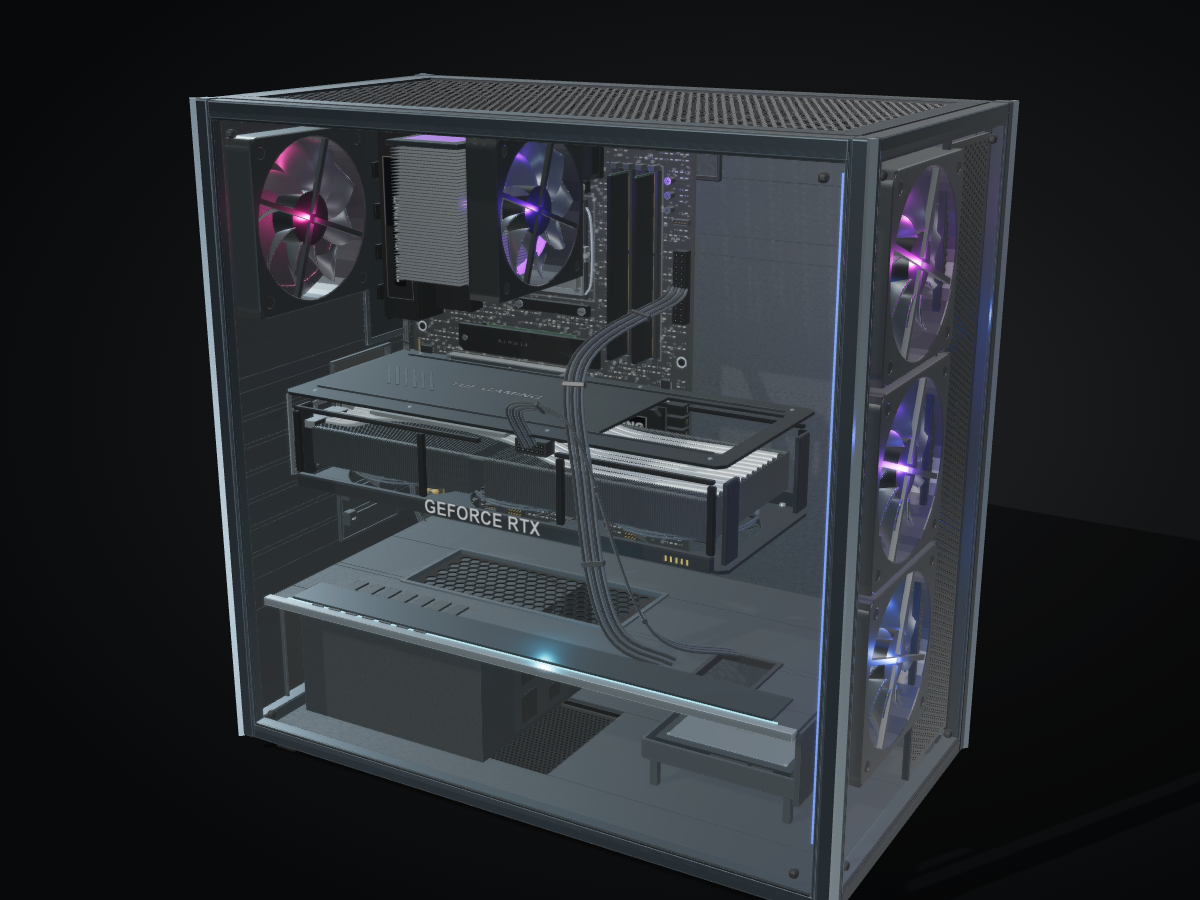
01The case
The case holds the machine together. Its frame supports the motherboard, graphics card, drives and power supply. Mounting points keep components in position, while ventilation openings and fan mounts give air a path through the enclosure. In PC Anatomy, remove the glass panels and lid to see how the parts sit inside an ATX tower.
02The motherboard
The motherboard connects the computer’s components. Its CPU socket holds the processor; DIMM slots hold memory; PCI Express slots connect expansion cards such as the GPU. Power circuitry supplies the processor, and M.2 slots connect compact SSDs. Inspect the board to find sockets, connectors, heatsinks and the smaller electronic parts between them.
03The CPU
The central processing unit runs program instructions, from application logic to operating-system tasks. Modern desktop processors have multiple cores and caches that keep frequently needed data nearby. PC Anatomy explores the Ryzen 9 9950X and Core Ultra 9 285K, including their chiplet or tile organization. The silicon views explain architecture rather than exact transistor placement.
04The graphics card
A graphics card combines a GPU processor, dedicated video memory, power delivery and cooling. The GPU performs many operations in parallel for graphics and other workloads. Open the RTX 5090 model to separate the fans, shroud, fin stacks, heat pipes and circuit board. Then descend into the GB202 architecture to explore graphics processing clusters and streaming multiprocessors.
Two more cards sit alongside it in the GPU menu. The AMD Radeon RX 9070 XT opens into Navi 48, whose shader engines, workgroup processors and compute units combine vector arithmetic, matrix math and ray tracing. The Intel Arc B580 opens into BMG-G21, built from render slices, Xe-cores and vector engines with XMX matrix engines beside them.
05RAM
Random-access memory holds the programs and data the processor is actively using. It provides fast working space, but its contents are lost when power is removed. Desktop memory modules fit into keyed DIMM slots beside the CPU. Inspect the motherboard to see the modules, their sockets and the notches that align them.
06Storage
Storage keeps files when the computer is switched off. A solid-state drive stores data in flash memory and uses a controller to manage reads and writes. PC Anatomy includes a SATA SSD with separate data and power connections, plus a separate M.2 NVMe SSD model under Storage. Take it apart to inspect its controller, NAND flash, DRAM, keyed contacts and mounting screw. You can also open it from the motherboard. These differ from RAM in both their role and how they connect.
07The power supply
The power supply converts mains electricity into the DC power used by the computer. Separate cables feed the motherboard, CPU and graphics card. Trace those connections in the case, then inspect the power-supply model to learn about its internal stages. The virtual disassembly is an educational model, not a guide to opening a real power supply.
08Cooling
Processors turn some of their electrical energy into heat. Thermal interfaces transfer it into a cooler; heat pipes and metal fins spread it over a larger surface; fans move warmed air away. Compare the tower CPU cooler, graphics-card cooling, case fans and separate liquid-cooling model to understand each part of that heat-transfer path.
How to use PC Anatomy
- Start assembled. Drag to orbit the computer and scroll or pinch to zoom.
- Take it apart. Move the bottom slider from Assembled to Dissection to Inventory, or press Auto.
- Look closer. Click an explorable part to open its detailed view. Right-click to inspect, hide, isolate or focus it. On touch screens, use the component menus and search.
- Follow the hierarchy. Use the scale navigator and breadcrumbs to move between the machine, its components and their internals.
The free, open-source explorer runs in a browser with JavaScript and WebGL. Component entries include explanations, specifications and source references. Mechanical models are educational approximations; named processors and GPUs are explored using documented architecture.
Start exploring →Smoother 3D in your browser
Hardware acceleration lets your browser use the GPU for 3D rendering. If exploration feels slow, check that it is enabled. This is a general recommendation; PC Anatomy does not detect your browser’s setting.
-
Chrome on desktop: Open Settings → System, enable
“Use graphics acceleration when available”, then relaunch Chrome.
You can also paste
chrome://settings/systeminto the address bar. -
Edge on desktop: Open Settings → System and
performance, find “Use graphics acceleration when available”, enable
it and restart Edge. You can paste
edge://settings/systeminto the address bar. - Firefox on desktop: Open Settings → General → Performance. Clear “Use recommended performance settings” to reveal “Use hardware acceleration when available”, enable it and restart Firefox. Firefox’s illustrated instructions.
Save work in other tabs before relaunching. Safari and mobile browsers manage acceleration automatically and generally do not expose this switch. A managed browser or unsupported driver may make the setting unavailable.
Return to the 3D explorer →